Installation Instructions (for Browser Extensions)
Installation Instructions - SERP Browser Extensions
- Watch the Video Walkthrough
- Follow the Step by Step Guide
Video Walkthrough
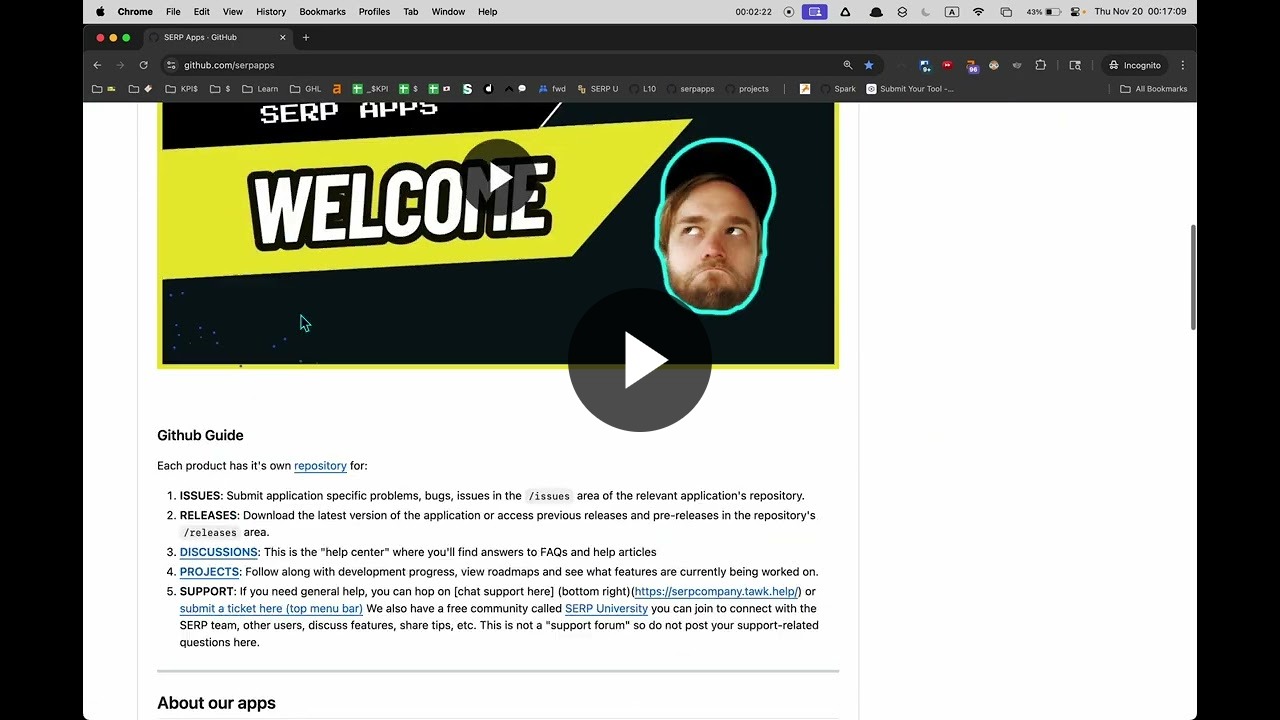
Step by Step Guide
1. Navigate the app's repository
The application's repository is located at:
https://github.com/serpapps/<PRODUCT_NAME>
For example, the Skool Downloader is located at:
https://github.com/serpapps/skool-downloader
You can also find the repository by going to:
…and using the search feature:
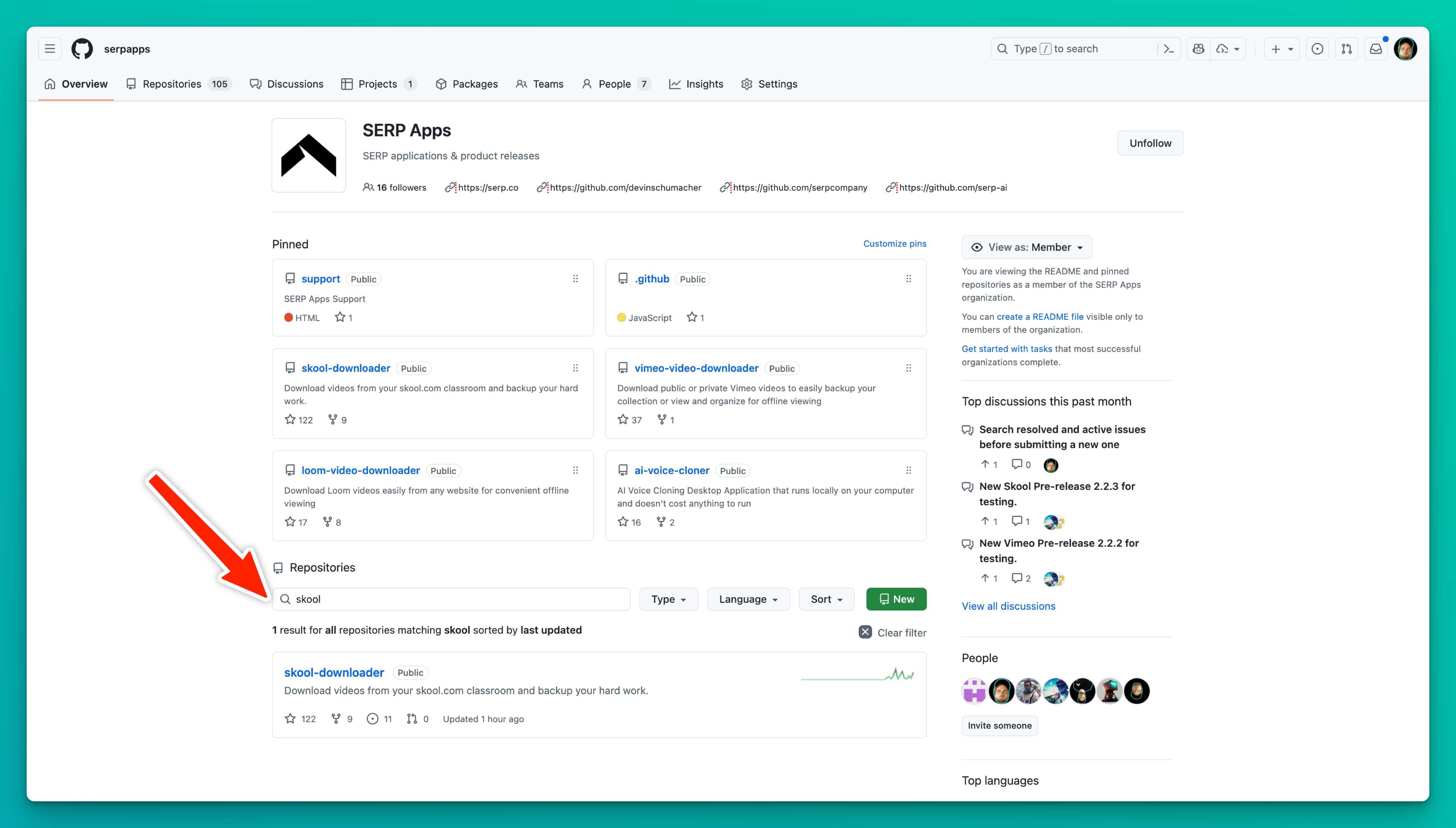
2. Star the repository
Star the application repository by clicking the button that looks like this:
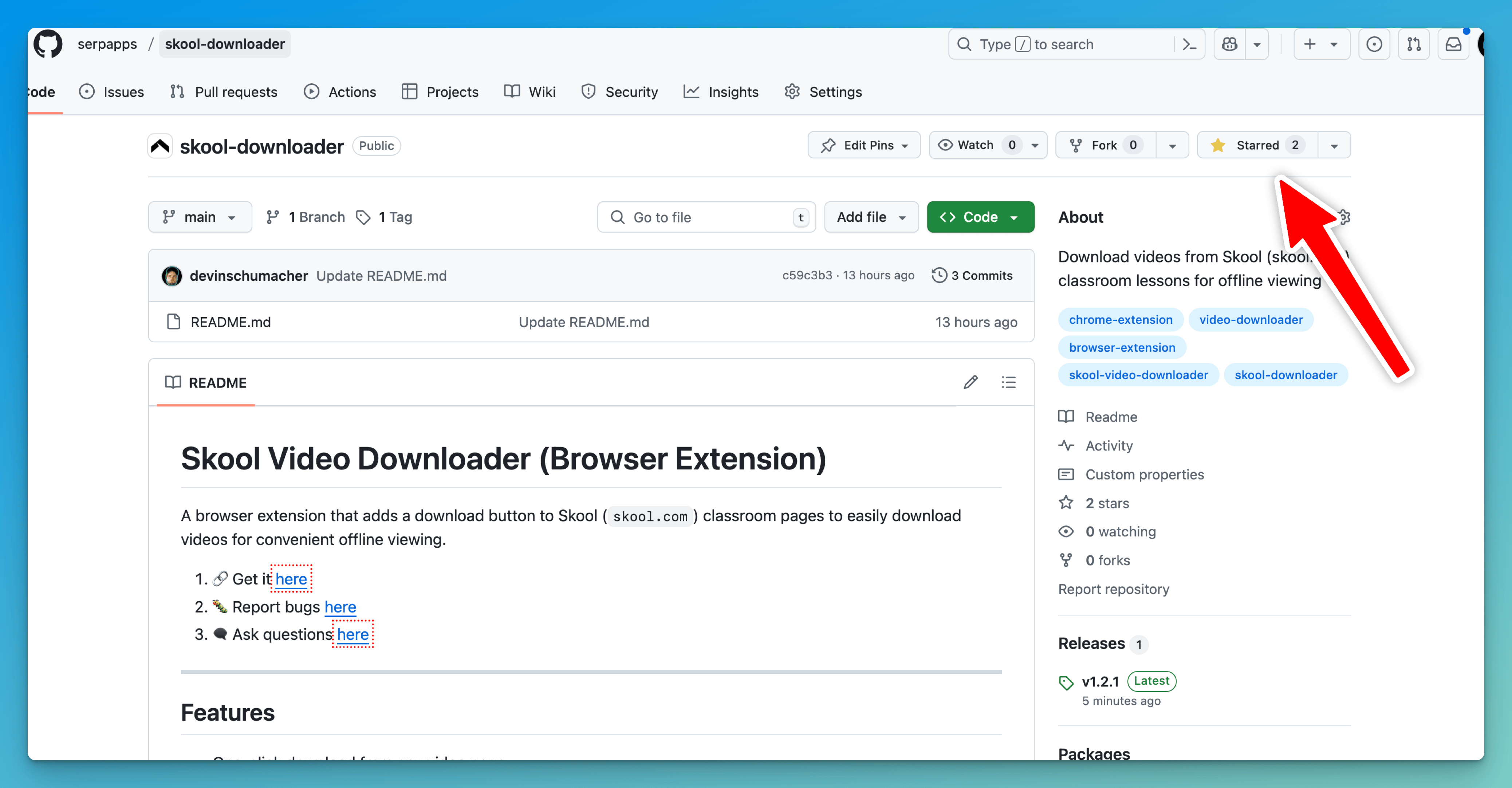
This helps ensure you get notifications/updates when new versions are released, or announcements are made.
3. Download the latest .zip file
Every application's download is located in the repository’s /releases section, which you can find by adding /releases to the end of the repository URL.
Examples:
- Skool Downloader:
https://github.com/serpapps/skool-downloader/releases - Vimeo Video Downloader:
https://github.com/serpapps/vimeo-video-downloader/releases - Onlyfans Downloader:
https://github.com/serpapps/onlyfans-downloader/releases
Make sure you download the right one.
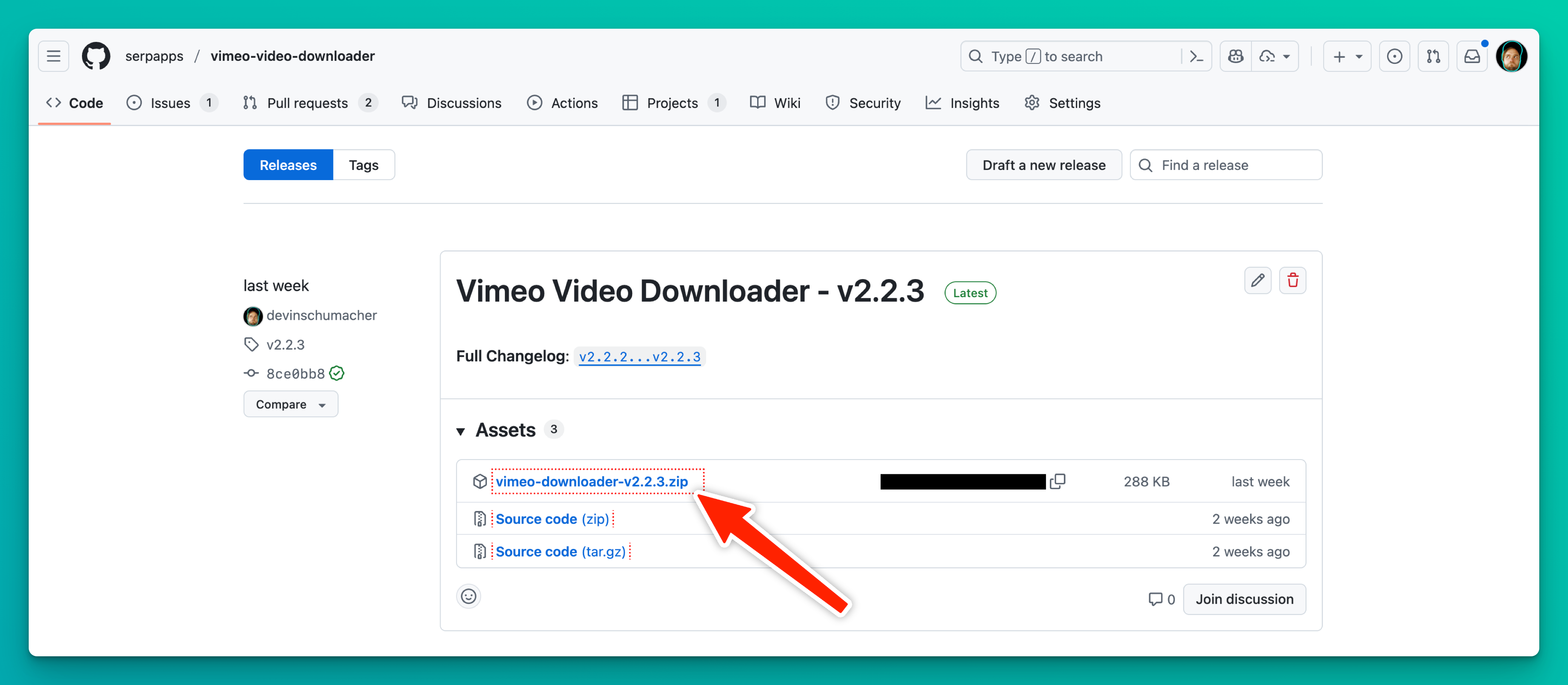
Download the latest version from the Releases section by clicking the .zip file link:
4. Unzip the .zip file
After you've downloaded the .zip file, unzip it by double-clicking the .zip file.
Recommendation: Place the unzipped folder somewhere on your computer that you want to keep it permanently (like your Documents or User folder).
5. Open your browser’s extensions page
Some extensions are available on the official Chrome store, but if they're not (or not yet) you’ll need to load it the “unofficial way”.
Chrome: go to chrome://extensions/
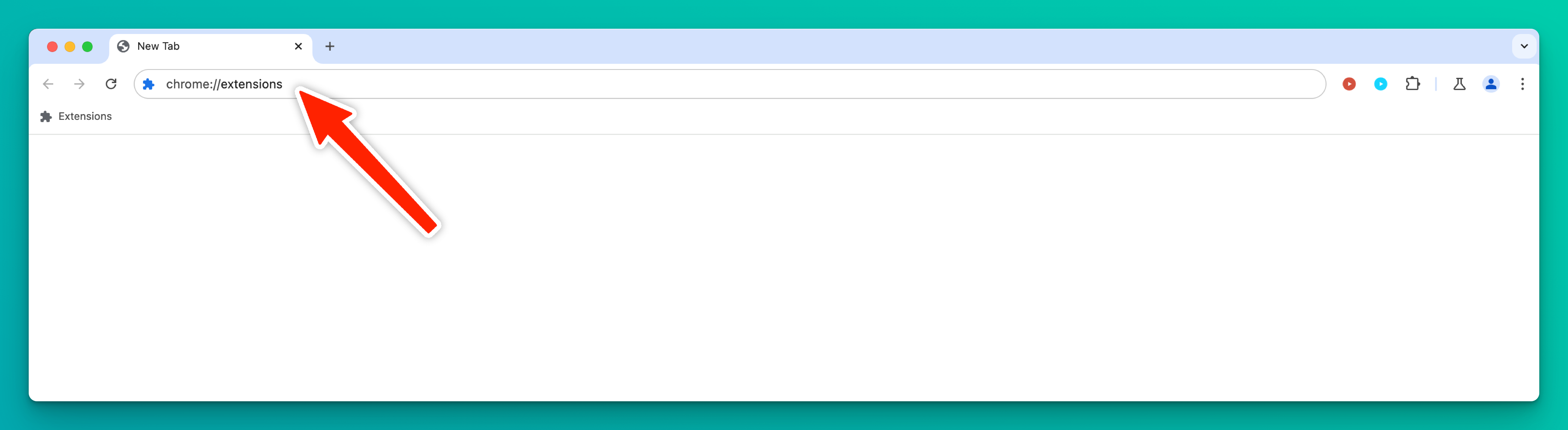
Other browsers:
- Firefox:
about:addons - Microsoft Edge:
edge://extensions
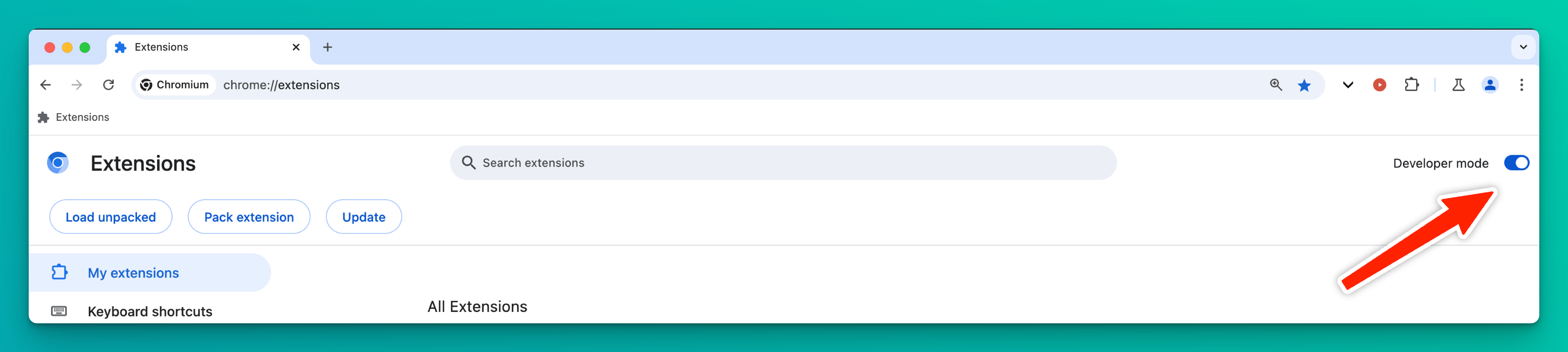
6. Enable Developer mode
Click the toggle on the top right that says Developer mode.
7. Load the extension with “Load unpacked”
Click Load unpacked (top left):
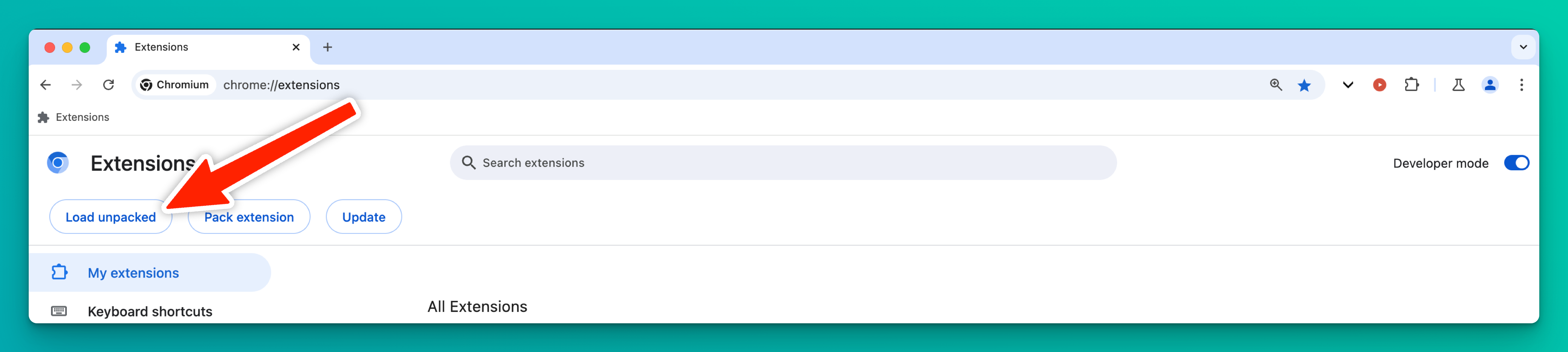
Then select the unzipped folder for the extension you are trying to install:
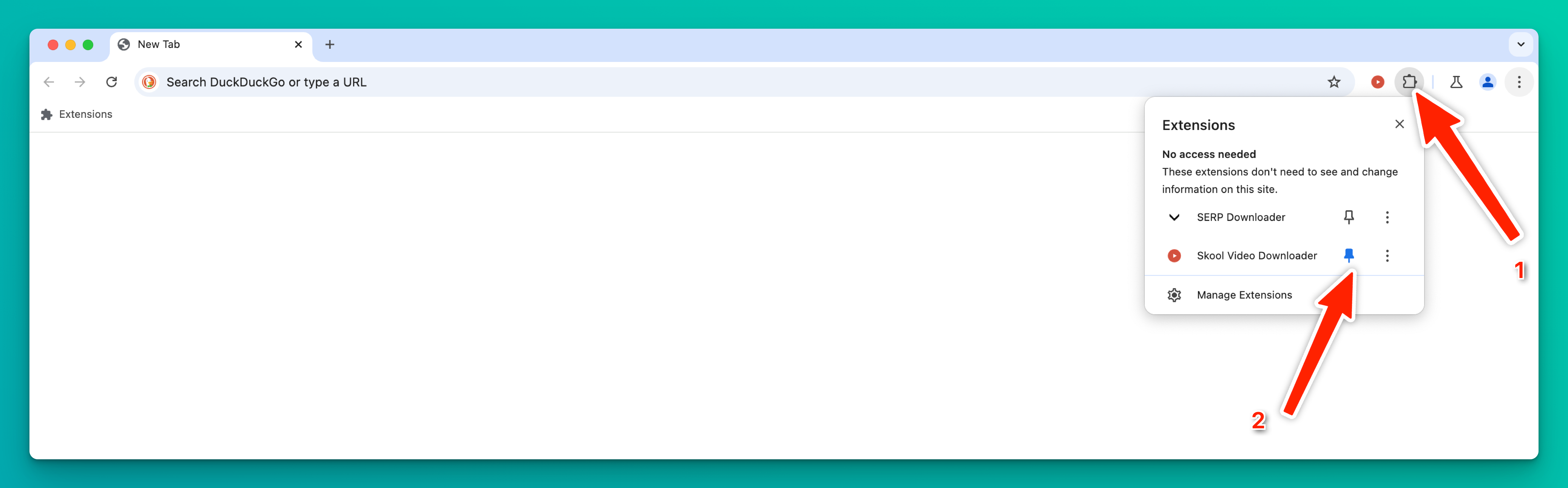
8. Pin the extension to your browser toolbar
After installing, the extension may be hidden behind the puzzle-piece icon until you pin it.
Click the puzzle-piece icon to show your active extensions, then click the pin icon to keep it visible.
9. Authenticate with your license key
When you click the extension for the first time, enter the email and license key associated with the extension.
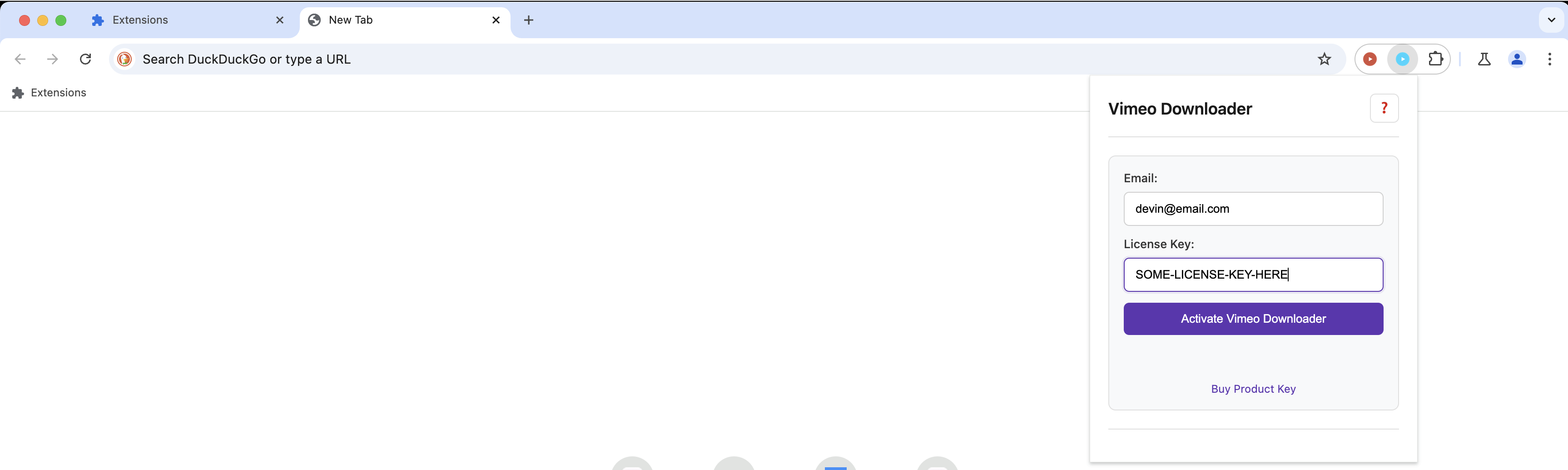
You can find your license key in the email confirmation you received after purchasing the extension.
Updated on: 26/12/2025
Thank you!